 Tiny Desk Video
Tiny Desk AI video · Guide
How to Make a Tiny Desk AI Video From Your Photos
Upload a clear photo of yourself and, if you like, photos of up to three friends. The tool places you in a 10-second Outstanding Tiny Desk performance with the original song excerpt. Movements and shots use the sample as a reference. No filming or editing template is needed.
01 / Before you start
What you need before you start
- 01One clear, front-facing photo of the lead performer. Put it in slot 1; this person appears in the opening and closing shots.
- 02Up to three optional photos for the keyboard and backing-vocal positions. Empty slots keep the original performers from the reference video.
- 03Permission from everyone whose photo you upload. Only adults may appear; public figures are not allowed.
02 / The process
How to make a Tiny Desk AI video from your photos
- 01
Choose and arrange your photos
Here's how to make a Tiny Desk AI video with friends: use one face per photo. Put yourself in slot 1, then add friends to the optional positions. Check the order before continuing: the first photo has the greatest effect on the lead performer.
- 02
Watch the reference video and choose a pack
Play the sample with sound and use the photo checklist on the homepage. Choose a one-time pack; there is no subscription or free generation trial. The current price is shown before purchase.
- 03
Generate, check and download
Start the generation and follow its status in My videos. When it finishes, check the faces, positions and movement. Download the MP4 if it works for you. Credits used by a failed generation return to your balance.
03 / Troubleshooting
If the result doesn't look like you
Most weak results trace back to the source photo or the slot order, not to the tool. This guide covers how to make a Tiny Desk AI video, and what to do when the result is not what you expected.
The face doesn't match the photo
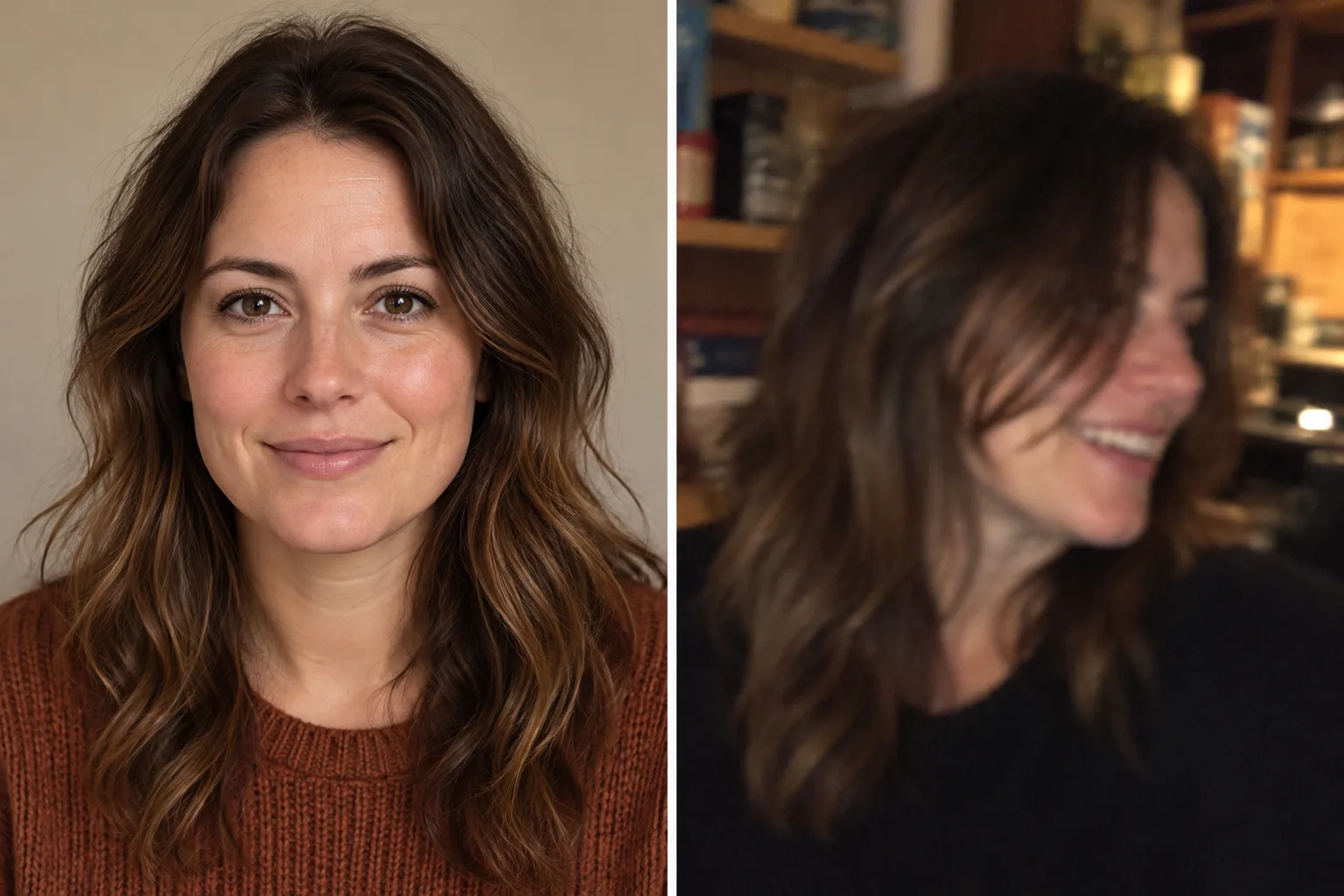
The most common cause is the photo you uploaded. Side profiles, sunglasses, heavy filters, group shots cropped down to one face and low-resolution images all leave the tool too little to work with. Regenerate with a single, front-facing photo where both eyes are visible and the chin is not cropped. Turn off beauty filters first — a heavily filtered upload usually comes back looking like the filtered version, not like you.
Friends ended up in the wrong position
Positions come from the slots you upload into, not from who is in each photo. The photo in slot 1 becomes the lead performer, and the remaining slots fill the other positions in order. If someone landed somewhere you did not expect, move that photo to a different slot and generate again. Editing the photo itself will not change where the person ends up.
The face changes between shots
Each video is cut into a few short shots, and the face is generated separately for each one. Small differences in hair, glasses or facial detail between shots are a known limit of this tool, not a failed generation. Before downloading, check the close-ups at the start and the end of the clip and keep the take where the face holds most consistently. If none of the takes hold, try a sharper source photo before changing anything else.
The photo was rejected
Uploads are refused when the photo shows a child, a public figure or someone who has not agreed to appear — and when no clear face is detected at all. In those cases the generation does not run and no credits are used. Replace the photo with an adult who has given you permission, or remove that slot entirely: a video with fewer people is still a valid result.
04 / Output and limits
What this photo-to-video tool actually makes
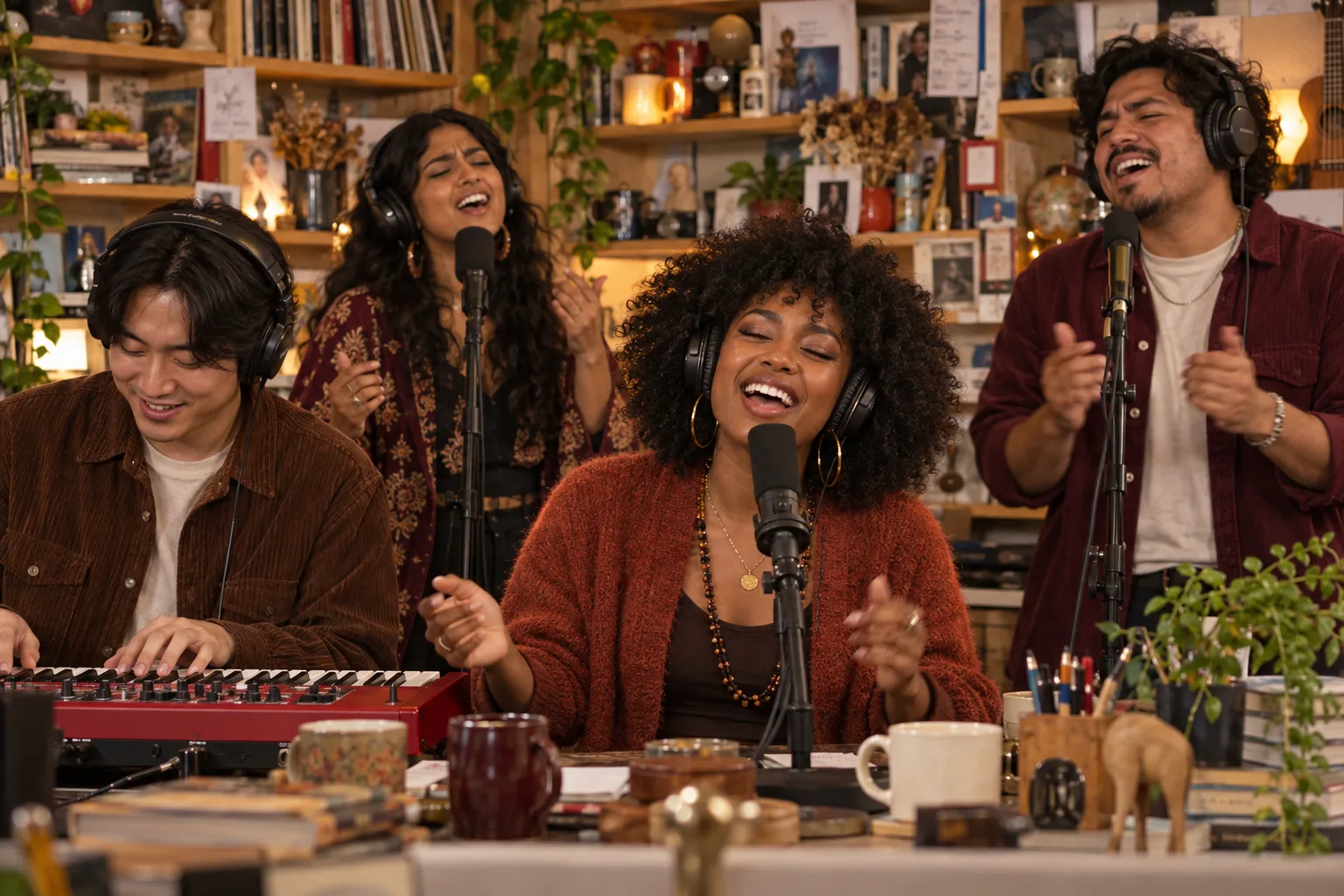
Each generation produces a 10-second, vertical 9:16 MP4 with an excerpt of the original Outstanding song. Movements and shots use the reference video as a guide, with your photos assigned to the selected performers.
The finished video already includes the original Outstanding song excerpt, so you do not need to add music. You cannot upload a different song or make a full-length performance here.
Tiny Desk Video is an independent tool and is not affiliated with NPR or Tiny Desk.
05 / Before sharing
Check the result before you post
- 01Does the lead performer resemble the slot 1 photo in both close shots?
- 02Are your friends in the intended positions? If not, change the photo order before trying again.
- 03Do the gestures and sound work for the clip you want to share? Do not present it as a real live recording.
Common questions
Do I need a CapCut template?
No. Upload your photos here to generate a finished short clip; no CapCut template is needed.
Can I upload my song and sync the video to my music?
Your clip includes a 10-second excerpt of the original Outstanding song; no extra music is needed. Uploading your own song is not supported.
Will the singer and band stay identical across shots?
Your photos guide each performer’s role. Clear, front-facing photos give the model a better reference; exact faces and outfits across shots are not guaranteed.
Can I generate a full-song live performance video?
This format makes one finished 10-second clip per generation, not an entire song. Larger packs give you more separate clips rather than a longer video.
Why doesn't my face look like me?
Check the lead photo in slot 1 first. Try a sharp, front-facing image with both eyes visible and no heavy filter, then review the new clip.